Turn a photo into a small marker palette
Find up to three colors to try from the markers you already own. A free starting point for your next coloring moment, with no account needed.
1 Choose the markers you own
2 Add a little inspiration
JPG, PNG or WebP · up to 12 MB / 40 megapixels. Your photo is processed in this browser and is not uploaded. No account or credits needed.
3 Your small starting palette
Up to three dominant photo colors, matched to the nearest usable marker colors in your selection.
Light, camera settings, screens, paper and ink layers can change how colors look. These are starting suggestions, not exact physical color matches. Test your markers on your coloring paper.
A small palette to try: warm yellow and dusty rose
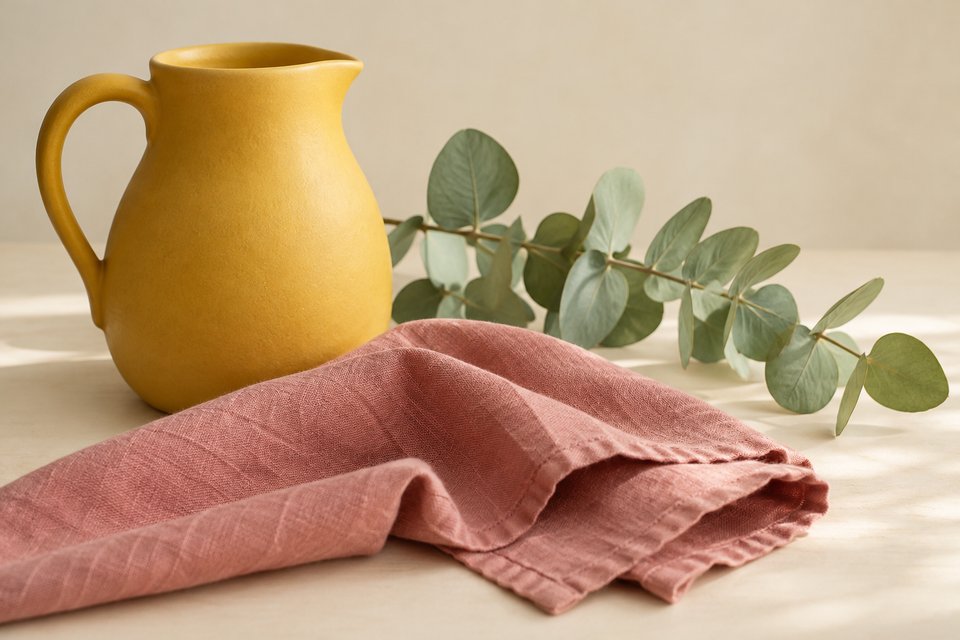
- Sampled photo color #D6C6AE → Y111 Mustard (marker chart #F0AF42); approximate digital match.
- Sampled photo color #B87468 → R210 Deep Blush (marker chart #FF6565); approximate digital match.
- Sampled photo color #8B580B → YR313 Potato Brown (marker chart #A6552A); approximate digital match.
Try this small palette on paper, or explore a complete paid preview in the ColorBestie app.
Which markers can I use to recreate colors in a photo?
Start with your exact marker set, not a brand’s entire catalog. This tool suggests the nearest known digital color for up to three main colors in your photo. For example, the Ohuhu Honolulu 24 reference includes Y111 (Mustard; older code Y2), with digital swatch #F0AF42. A photo area with that same digital value matches that marker in this set. Real ink may still look different.
A flower photo with a large pink bloom, green leaves and a pale background can suggest three starting colors. A mostly blue sky may suggest just one. Small details and colors your markers cannot closely reproduce may be left out.
How the small palette is chosen
We resize the photo to at most 160 pixels on its longest side, group similar colors and consider the three largest groups covering at least 3% of the sampled visible pixels. Transparent pixels are ignored. Each group is compared with your selected marker swatches using the existing CIEDE2000 color-difference helper. Differences above 25 are skipped. These grouping and cutoff values are practical choices for a small inspiration tool, not a promise of accuracy on paper.
Marker codes and digital values come from ColorBestie’s existing catalog, including Ohuhu’s color-code references, DecoTime’s color chart and Copic’s Ciao reference. The selected set’s source is linked in the tool. Some catalog entries have missing data; those colors cannot be matched.
For a physical reference, try the marker swatch chart maker and color the boxes yourself on your usual paper.
Photo palette questions
How do I find marker colors from a photo?
Choose the exact marker set you own, then select a JPG, PNG or WebP inspiration photo. ColorBestie groups similar sampled pixels and compares up to three dominant colors with the known digital swatches in your selection. It returns at most three unique marker codes.
Will these colors match my photo exactly on paper?
No. Photo lighting, camera settings, screen calibration, paper and ink layers affect color. Matching compares digital chart values using CIEDE2000 color difference. Check your own swatch chart before coloring; a nearest digital match is not a guarantee of a physical match.
Why did I get fewer than three marker colors?
A photo may have only one or two distinct dominant colors. Two photo colors may share the same nearest marker, or your set may lack a suitable digital match. We skip duplicates, tiny accents and large color differences instead of adding unrelated colors to fill three slots.
Is my photo uploaded, and does this use credits?
The photo is decoded and sampled locally in your browser. This tool does not upload it, create an account, save anything to an account or use credits. Removing the photo clears it from the tool. Paid coloring-page previews are a separate feature in the ColorBestie app.
Can I use DecoTime or only some markers from a set?
Yes. Choose the relevant color reference and enter the current marker codes you own. The DecoTime reference is a full chart, so you must enter your own codes. Unknown codes and missing color data are excluded; we do not guess their colors.
Ready to explore a complete color reference for your own page? Open ColorBestie and explore the paid preview feature.